 Tiếng Việt
Fix Kernel Panic When Installing AlmaLinux 9 on KVM VPS


How to Fix AlmaLinux 9 Kernel Panic
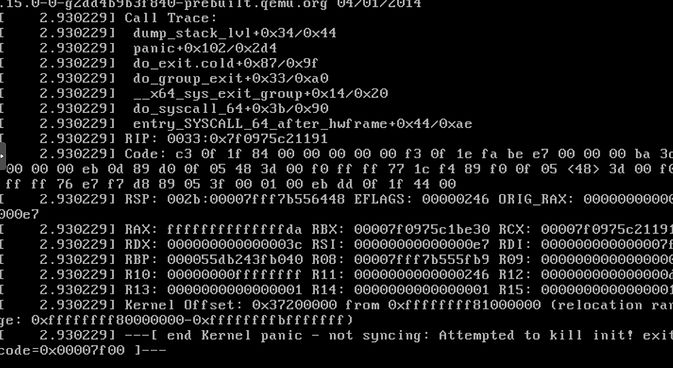
The Kernel panic - not syncing: VFS: Unable to mount root fs error when installing AlmaLinux 9 on a KVM VPS usually occurs because the default virtual CPU mode (like kvm64 or qemu64) lacks modern instruction sets. To fix it completely, access your hypervisor and change the CPU Mode to Host Model or Host Passthrough.
When deploying next-generation operating systems on a Linux VPS, hardware-to-kernel incompatibility is a common hurdle. This troubleshooting guide explains how to identify the symptoms, understand the root causes, and permanently resolve this boot failure.
1. Symptoms of Kernel Panic
This error triggers immediately during the early boot stage. The system halts all operations (freezes) to prevent data corruption and prints a final error message on the console screen:
2. Causes of Kernel Panic on KVM VPS
Starting with version 9, RHEL-family distributions (AlmaLinux 9, Rocky Linux 9, CentOS Stream 9) raised their minimum hardware requirements. They now strictly require CPUs that support the x86-64-v2 architecture instruction set (including SSE4.2, SSSE3).
Meanwhile, many KVM environments still utilize the legacy kvm64 or qemu64 CPU models to maintain backward compatibility for live migrations. These legacy models lack modern instruction sets, causing the AlmaLinux 9 Kernel to fail when decompressing the initramfs and mounting the root partition (VFS).
3. Solution: Change CPU Mode to Host
To resolve this, you must change the virtual machine's CPU mode so it inherits modern features directly from the physical host CPU. There are two optimal choices:
4. Step-by-Step Instructions (GUI & CLI)
Method 1: Via Control Panel (Virtualizor / SolusVM)
- Step 1: Shut down (Power off) your virtual server.
- Step 2: Navigate to the VPS configuration area (usually under the Hardware or Settings tab).
- Step 3: Locate the CPU Type or CPU Model field, and change the value from
Default (kvm64)to Host Model or Host Passthrough. - Step 4: Save the configuration and Start the VPS.
Method 2: Via Command Line (For Sysadmins)
If you are managing the virtualization node directly, use these commands:
- For Proxmox VE:
# Replace VMID with your actual VM ID (e.g., 101)
qm set VMID --cpu host
- For Native KVM/libvirt: Edit the VM's XML configuration using virsh edit VMID and update the CPU tag:
5. Verify CPU Mode After Fixing
Once the system successfully boots into AlmaLinux 9, you can confirm that the VPS is correctly reading the physical CPU architecture by using the lscpu command:
lscpu | grep "Model name"If the output displays the actual physical chip name (e.g., Intel(R) Xeon(R) Platinum...) instead of Common KVM processor, your configuration is perfect.
6. Related Boot Errors
If you work extensively with Linux infrastructure, keep an eye out for these other common boot-stage panics:
- Initramfs panic: Usually caused by a corrupted initramfs image during a kernel update. Requires booting into Rescue mode to run
dracut. - GRUB boot error (grub rescue): Caused by a lost boot partition, misconfigured MBR/GPT table, or a corrupted
grub.cfgfile. - SELinux target policy error: Occurs when severe SELinux misconfigurations block the system from accessing core files during startup.
7. Conclusion
While an AlmaLinux 9 Kernel Panic appears intimidating, the fix is straightforward: align your virtual CPU mode with modern requirements. Using Host Passthrough not only resolves the VFS boot error permanently but also allows your VPS to fully utilize the underlying hardware's processing capabilities.
Worried about OS compatibility issues? All KVM VPS and Dedicated Server infrastructures at VietHosting are 100% standardized (Host Passthrough) by default, ensuring flawless compatibility with all modern operating systems.
More Technical Guides
Explore additional technical guides and practical tutorials to optimize performance and manage your server infrastructure efficiently.