 Tiếng Việt
Install Cockpit on AlmaLinux 9 to Manage Your VPS with Web UI

Manage Linux Servers via a Modern Dashboard
Cockpit is a web-based graphical interface for servers. To install Cockpit on AlmaLinux 9, simply run sudo dnf install cockpit -y, open firewall port 9090, and navigate to https://YOUR-VPS-IP:9090 to visually manage your system, services, and resources.
Managing a Linux VPS exclusively through the command line interface (CLI) can be a steep learning curve. Fortunately, Cockpit steps in as the perfect solution: a free, modern Web UI sponsored by Red Hat. This tutorial will show you how to transform a pure terminal environment into an intuitive dashboard on AlmaLinux 9.
1. What is Cockpit?
Cockpit is an open-source server administration tool that provides an interactive, web-based UI. The best part about Cockpit is that it is non-intrusive. Actions performed in the Cockpit dashboard (like adding users or changing IPs) seamlessly synchronize with the underlying system files and CLI commands.
2. When Should You Use Cockpit?
While SSH remains the ultimate power tool, Cockpit excels in several specific use cases:
3. Step-by-Step Installation on AlmaLinux 9
- Step 1: Update Your System
Ensure your AlmaLinux repositories and packages are up to date.
UPDATE SYSTEMsudo dnf update -y - Step 2: Install the Cockpit Package
Cockpit is included in the default AlmaLinux 9 AppStream repository.
INSTALL COCKPITsudo dnf install cockpit -y - Step 3: Enable and Start the Service
Configure Cockpit to start automatically on system boot.
ENABLE SERVICEsudo systemctl enable --now cockpit.socket - Step 4: Open Firewall Port (9090)
Allow incoming web traffic to access the dashboard through port 9090.
CONFIG FIREWALLsudo firewall-cmd --permanent --add-service=cockpit sudo firewall-cmd --reload
4. Verify Cockpit Installation
To ensure the setup was successful, check the status of the Cockpit socket. It should return an active (listening) state.
sudo systemctl status cockpit.socket5. How to Access the Web UI
Open your web browser and navigate to: https://YOUR-VPS-IP:9090.
Upon your first visit, your browser will display a "Your connection is not private" warning because Cockpit uses a self-signed SSL certificate. This is expected behavior. Click Advanced > Proceed to....
Log in using your root credentials or any user account with sudo privileges.
6. Exploring Main Features and Add-ons
The Cockpit interface is divided into dedicated administrative sections:
| Management Area | Primary Function |
|---|---|
| System | View overview charts for CPU, RAM, and Network. Apply Software Updates. |
| Services | Manage systemd processes, cron jobs, and sockets visually. |
| Networking | Configure static IPs and manage firewall rules intuitively. |
| Terminal | Access a fully functional command-line interface directly within the web browser. |
Extend Cockpit with Modules (Add-ons):
You can significantly boost Cockpit's capabilities by installing extra packages:
# Manage Docker/Podman Containers
sudo dnf install cockpit-podman -y

# Manage Disk Partitions & RAID
sudo dnf install cockpit-storaged -y
7. Security Recommendations for Cockpit
Since Cockpit grants full system control over the web, security is paramount. Consider applying these settings:
- Disable Root Login: It is highly recommended to create a new user with
sudoaccess and use that for login. Cockpit allows you to disable direct root logins to prevent brute-force attacks. - IP Whitelisting (Rich Rules): Instead of opening port 9090 globally, restrict access strictly to your office IP address.
sudo firewall-cmd --permanent --add-rich-rule='rule family="ipv4" source address="YOUR_OFFICE_IP" port protocol="tcp" port="9090" accept'
8. Conclusion
Cockpit represents the perfect balance between the user-friendliness of a Web UI and the deep control of the Linux command line. Deploying this tool on AlmaLinux 9 drastically reduces the daily administrative overhead for sysadmins and developers.
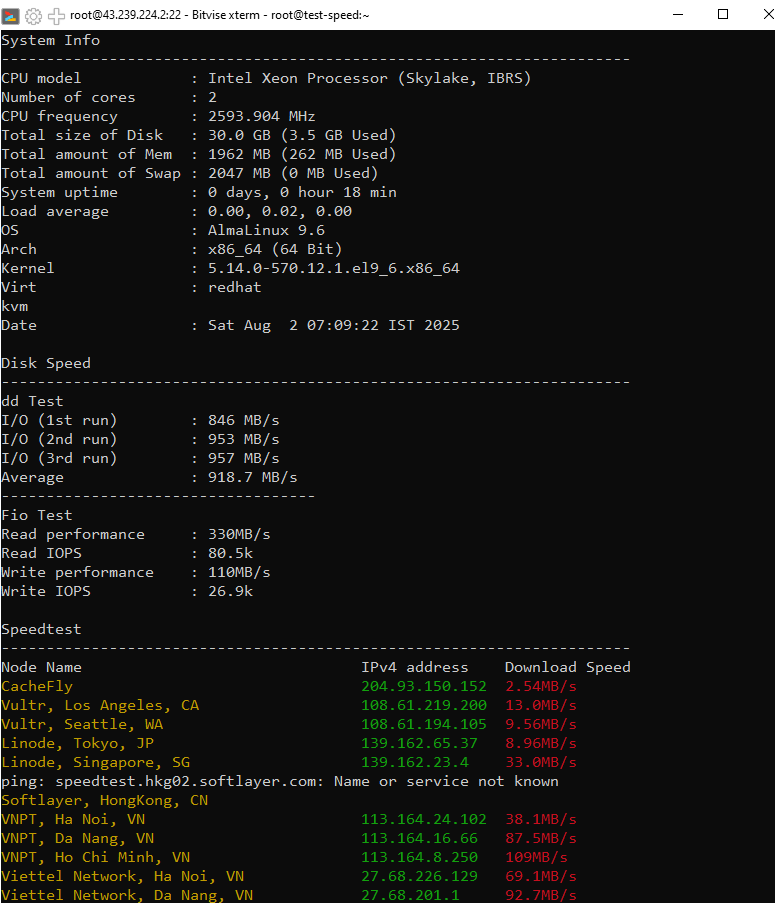
Need a pristine AlmaLinux 9 environment to freely install your management tools? Experience unparalleled hardware power with Enterprise SSD storage and high-end processors at VietHosting.
More Technical Guides
Explore additional technical guides and practical tutorials to optimize performance and manage your server infrastructure efficiently.
 Extremely fast, low latency, less affected by submarine cable incidents.
 Slower, high latency, highly dependent on international connections.